Product details
- Type
- Software, delivered as a code
- Region
- REGION FREE
- Delivery
- To your account and email after payment
- Payment
- Azvoro balance
Description
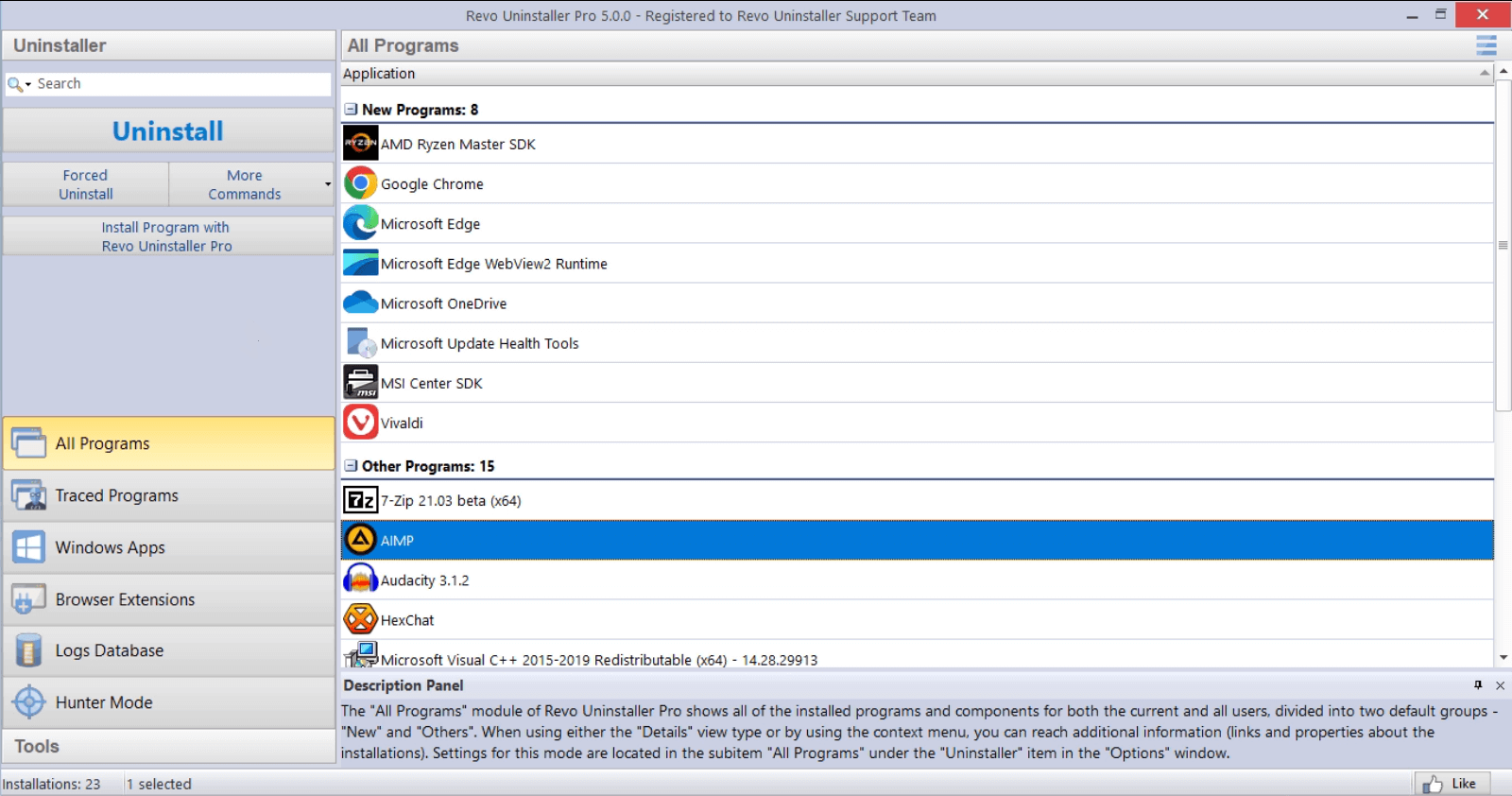
Uninstaller The Uninstaller module is Revo Uninstaller Pro’s primary feature for situations when a program won’t uninstall normally or when you have some doubts that a program has not been uninstalled completely. Also when a program is uninstalled, often times there are multiple files, folders, and/or Registry entries left on your system, which can cause various issues if not removed. This happens more frequently than you might think. Revo Uninstaller Pro acts as both a replacement and a supplement to the built-in functionality in Windows by first running the built-in uninstaller for the program, and then scanning for leftover data afterwards, making it your best choice when it comes to completely removing stubborn programs, temporary files, and other unnecessary program data that is left behind after the standard uninstall process. To ensure the complete removal of any unnecessary leftover data, Revo Uninstaller Pro employs advanced scanning algorithms, which have been finely tuned for more than 12 years. Forced Uninstall Revo Uninstaller Pro also comes with a very powerful feature called Forced Uninstall. This feature allows you to perform manual scans for leftovers, which can be very useful when a program’s built-in uninstaller is not functioning properly, when the program you wish to uninstall is not listed at all in Revo Uninstaller Pro or in Windows’ Programs and Features applet, or when you wish to scan for leftovers of a program that you had already removed previously, without Revo Uninstaller Pro’s assistance. Forced Uninstall gives power to the user but still keeps the safety and the accuracy of the results. It is very useful when the installation is corrupted and cannot continue further. It is the best solution when you have to remove partially installed programs, partially uninstalled programs, and programs not listed as installed at all. Forced Uninstall also works in conjunction with one of Revo Uninstaller Pro’s other features — Logs Database — to find the best way to completely and cleanly remove the program and its potential leftover data. Quick/Multiple Uninstall For situations when time is a factor or you simply wish to automate the uninstall process a bit even being able to uninstall few programs in a row Revo Uninstaller Pro offers a command for Quick/Multiple Uninstall. In this mode Revo Uninstaller Pro still runs the program’s built-in uninstaller as usual, after which Revo Uninstaller Pro performs automatically a scan for leftovers, and deletes everything it finds without prompting the user, before moving on to the built-in uninstaller of the next program in the queue, if any. This allows you to remove multiple programs in a quick succession by having to only deal with their built-in uninstallers. Real-Time Installation Monitor Revo Uninstaller Pro has a feature that allows monitoring the installation of a program. It grants you even more power and flexibility by allowing you to precisely track and trace the changes made t...
How to activate
Download the program from here. Install and run the software. Enter the key and activate. We strongly recommend you to follow these instructions in case you are going to reinstall the program in the future. You will not be able to activate it again if you do not follow these instructions prior any reinstallation/PC upgrade is done. After the online activation you will need to restart the program, make sure that it has been registered. Make a backup copy of the license file "revouninstallerpro.lic" which should be located in the folder "C: \ ProgramData \ VS Revo Group \ Revo Uninstaller Pro", and then copy the previously saved license file to the same path(replace it). This key will not work for the portable version of the software!